Creating a data backup
Required accessory
In order to perform a data backup for your device, you need a dual USB flash drive (2-in-1 USB stick) Type-C/USB 3.0 with a USB C connector and a USB A connector. Such a dual USB flash drive is delivered together with your device. You may also purchase such an USB flash drive from different vendors.
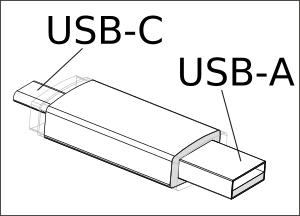
Perform data backup
Open the menu item

Devicein the main screen of your VitalControl device.Invoke the submenu
Data managementand select the submenu itemData backupafterwards. Now select the menu itemCreate backupand confirm withOK. You are now asked to insert an USB flash drive: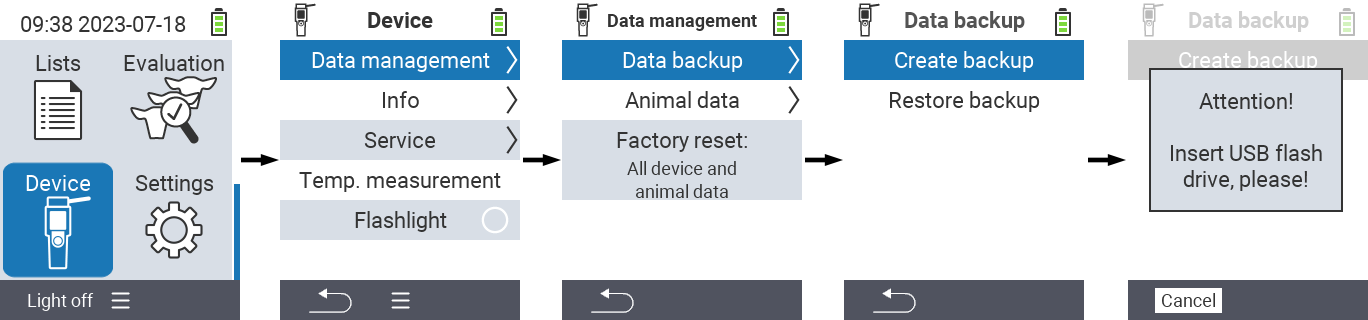
Insert the USB flash drive (C plug) into the connector at the bottom of the device.
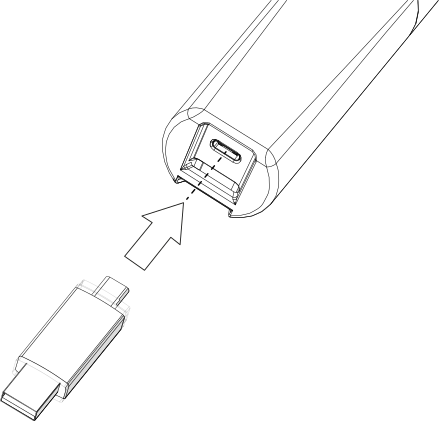
Figure 2: Inserting the USB stick into the VitalControl Once the device detected insertion of the USB stick, the data backup is automatically started. Collecting, compressing and writing the backup data may take a minute or longer. When the backup is done, a success message is displayed:
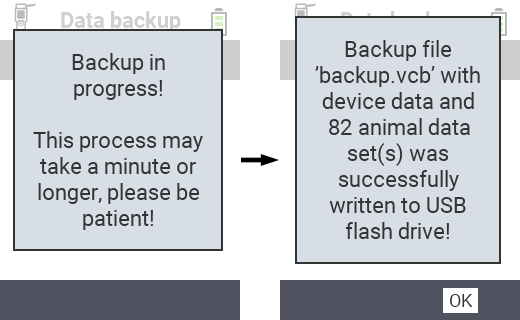
The data backup is now created. You will find the created file
backup.vcuin the directorybackupon your USB flash drive. The backup file requires approx. 1 MB of storage space on the flash drive.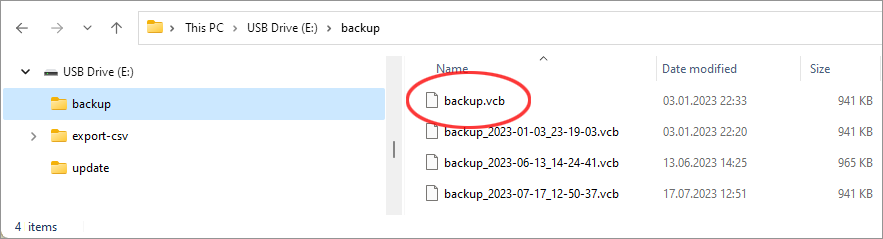 Hint
HintIf a file
backup.vcualready exists in thebackupdirectory of your USB flash drive, this file will be renamed. The new name of the file is composed of the leading stringbackupand the date and time when the backup file was created (e.g.backup_2023-07-17_12-50-37.vcb). The newly written backup file is always namedbackup.vcu.- The created backup file can be used to restore the stored data to any VitalControl device if needed.